As organizations continue expanding their infrastructure across multiple locations, maintaining high availability and disaster resilience becomes critical. One of the most effective solutions for achieving this in a VMware environment is deploying a VMware vSAN Stretched Cluster within VMware Cloud Foundation (VCF).
In this article, we will walk through the process of expanding an existing VMware Cloud Foundation workload domain using a vSAN stretched cluster architecture.
What is a vSAN Stretched Cluster?
A vSAN stretched cluster is a configuration that distributes cluster nodes across two geographically separated sites while maintaining a single logical cluster. This architecture provides:
High availability across sites
Protection against site failure
Continuous workload availability
Simplified disaster recovery
Within VMware Cloud Foundation, stretched clusters can be deployed for workload domains to improve business continuity and resilience.
Prerequisites
Before starting the deployment, ensure the following requirements are met:
Existing VMware Cloud Foundation environment
Operational SDDC Manager
Configured workload domain
Layer 2 and Layer 3 network connectivity between sites
Proper DNS and NTP configuration
Low latency network connectivity between sites
vSAN compatible hardware
Dedicated networks for:
vSAN traffic
vMotion traffic
Management traffic
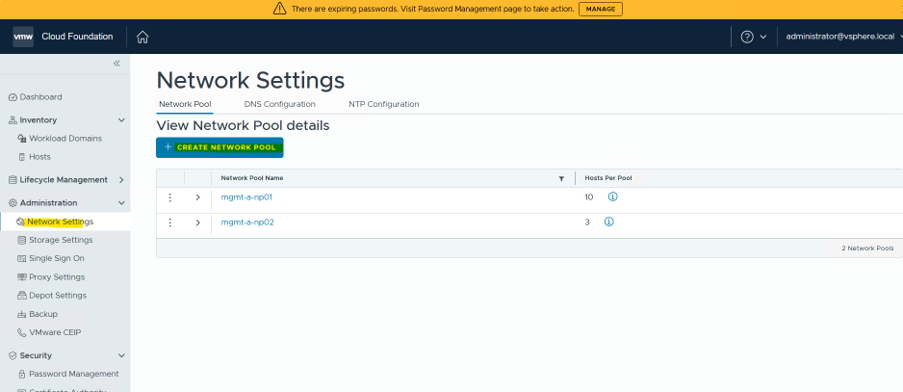
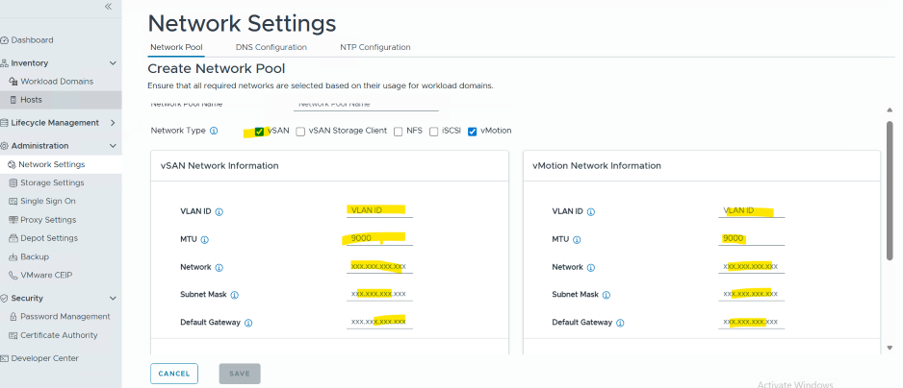
Step 1 – Create a Network Pool for Site-B
The first step is to create a new network pool in SDDC Manager for the secondary site (Site-B).
Proper network planning is essential to ensure optimal performance and seamless communication between cluster nodes.
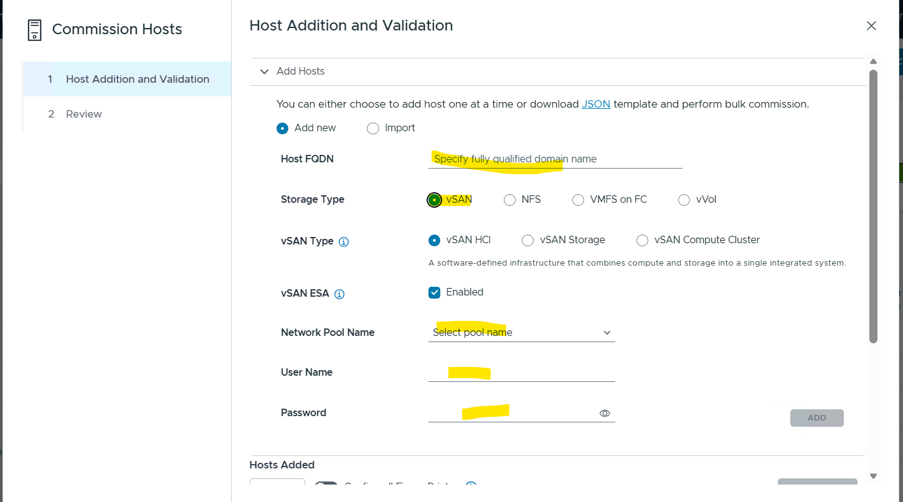
Step 2 – Commission Hosts into SDDC Manager
After the network pool is created, the next step is to commission the ESXi hosts that will participate in the stretched cluster.
During host commissioning:
Assign management IP addresses
Validate DNS and NTP settings
Verify hardware compatibility
Confirm network connectivity
Once validation completes successfully, the hosts become available for workload domain expansion.
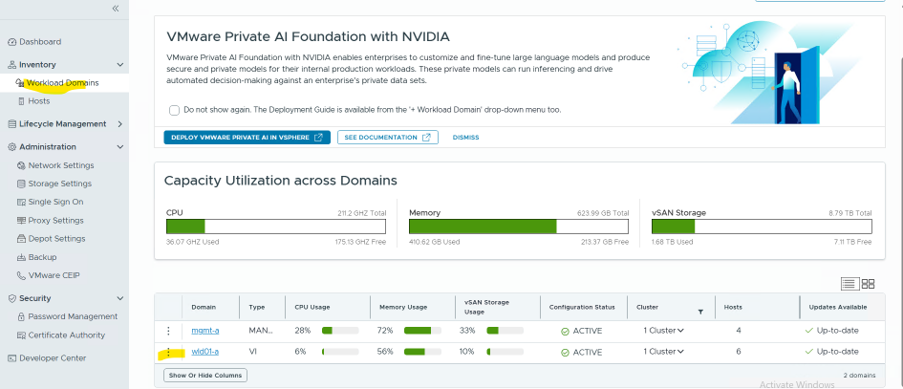
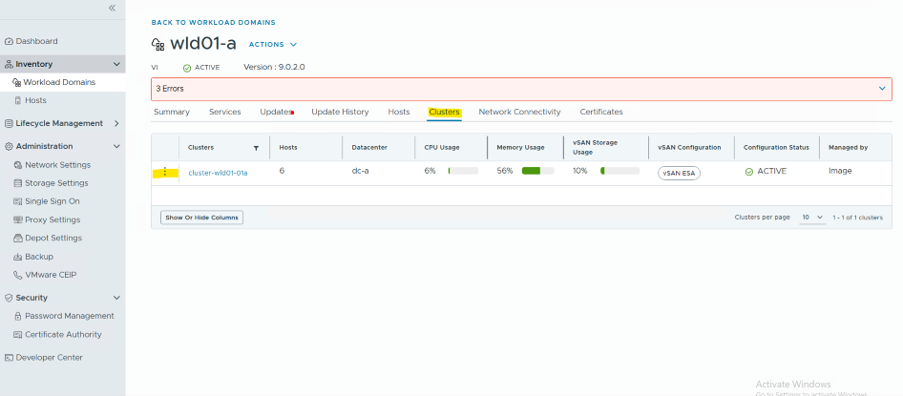
Step 3 – Add Hosts to the Workload Domain Cluster
Now navigate to:
SDDC Manager → Workload Domains
Select the target workload domain cluster where the stretched cluster hosts will be added.
From the cluster menu:
Click the three-dot menu
Select Add Host
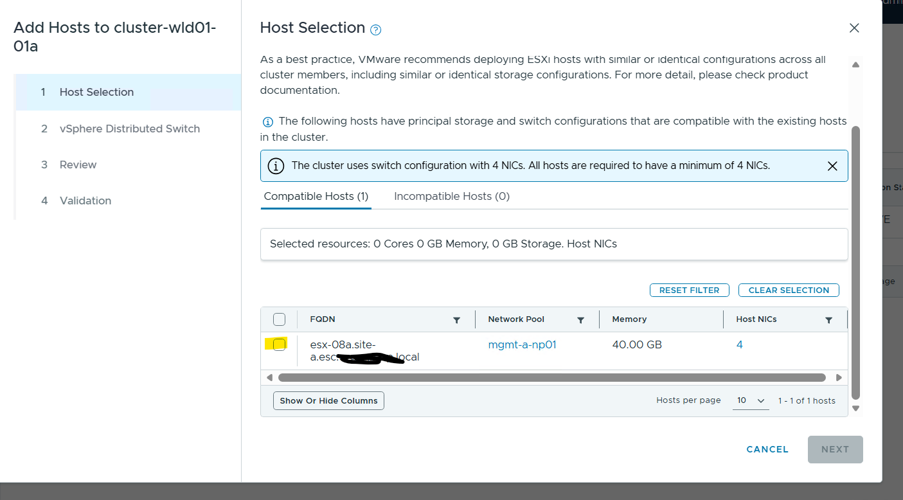
You will now see the list of available commissioned hosts.
Select the required hosts and proceed to the next step.
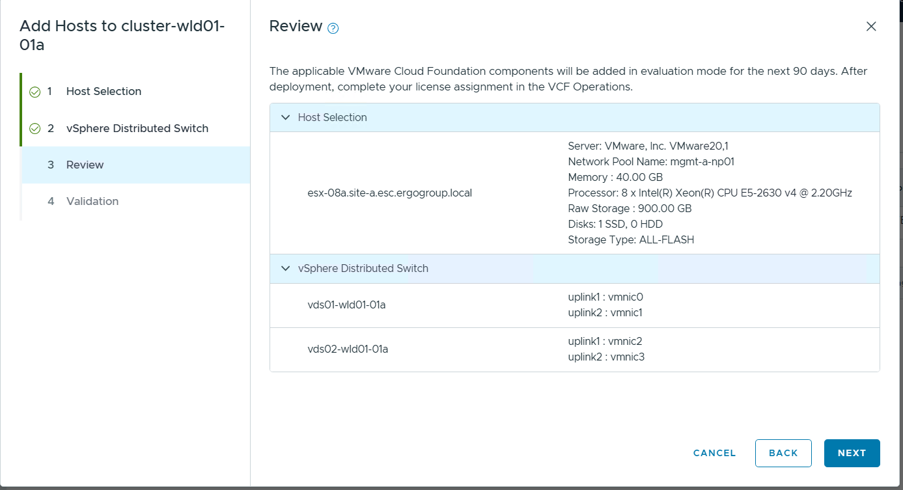
Step 4 – Configure Distributed Switch and Uplinks
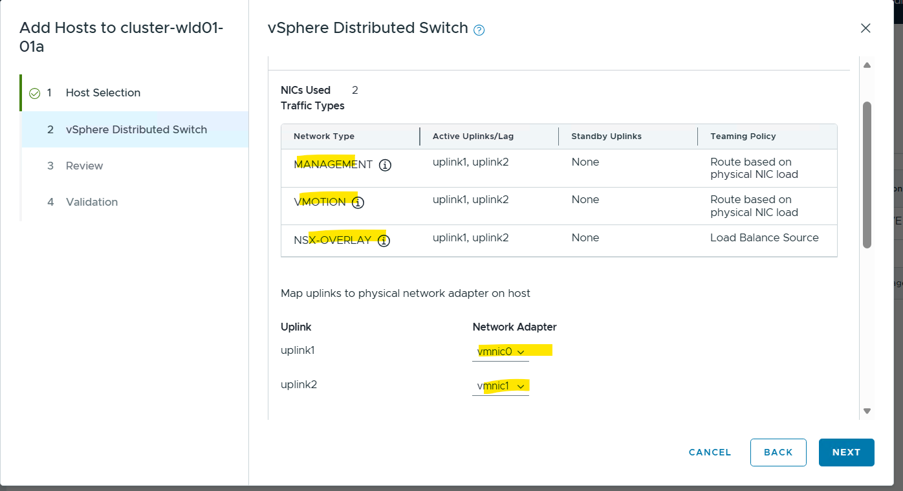
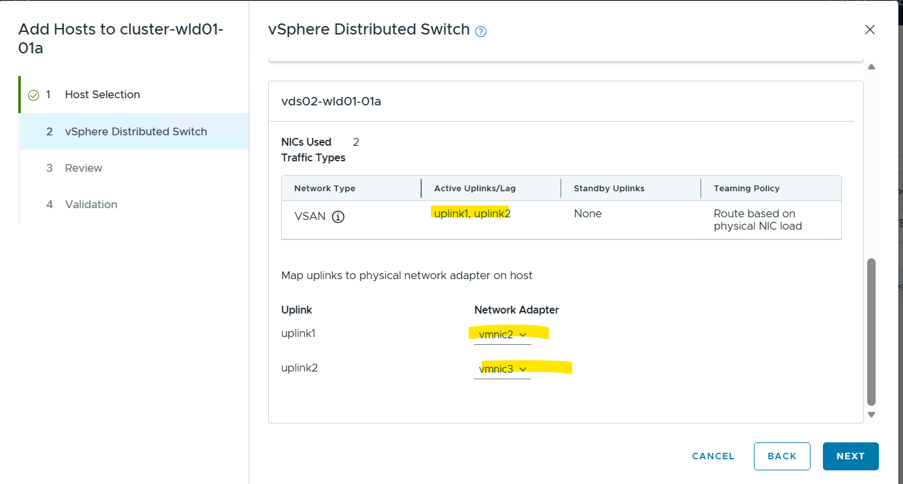
During the host addition process, you must map the hosts to the appropriate distributed virtual switch (VDS).
Configure:
Distributed Switch assignment
Physical uplinks
Network adapters
Traffic separation policies
Ensure that vSAN and vMotion traffic are properly isolated according to VMware best practices.
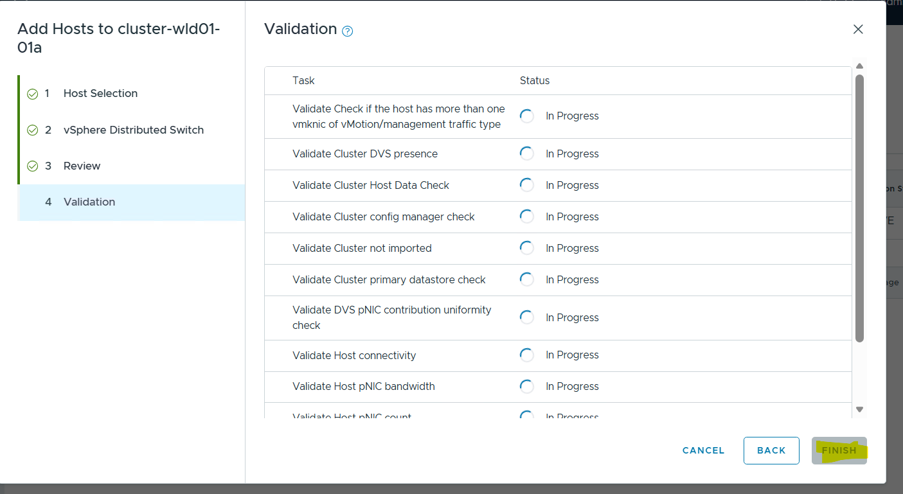
Step 5 – Validate Configuration
Before deployment begins, VMware Cloud Foundation performs an automated validation process.
The validation checks include:
Network connectivity
VLAN consistency
DNS resolution
Storage compatibility
vSAN readiness
Cluster health
Review all settings carefully and resolve any warnings or errors before proceeding.
Once validation completes successfully, click Next to continue.
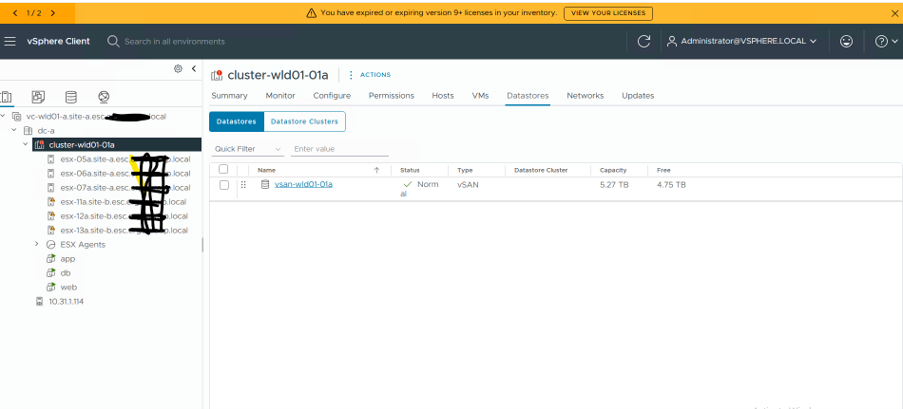
Step 6 – Verify Hosts in vCenter Server
After deployment finishes, log in to the workload domain vCenter Server.
Verify that:
Newly added hosts appear in the cluster
Networking is functioning correctly
vSAN storage is operational
Cluster health is healthy
At this stage, the stretched cluster nodes should be fully integrated into the workload domain.
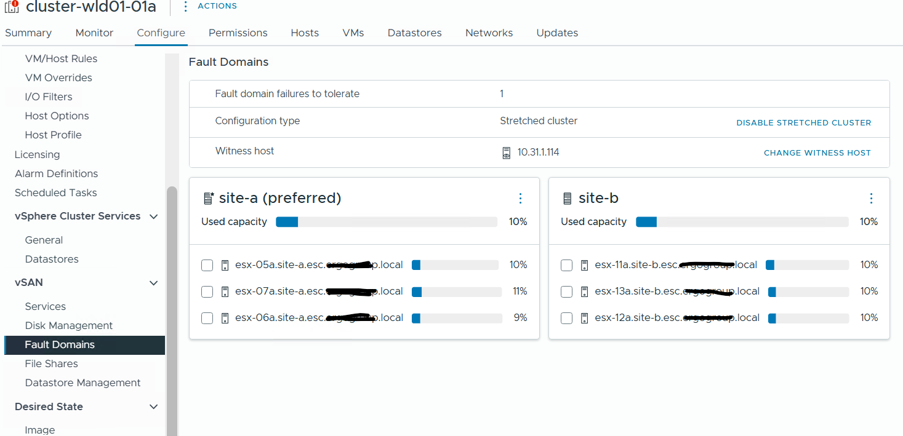
Step 7 – Configure vSAN Fault Domains
The final step is configuring fault domains for site awareness.
Navigate to:
Cluster → Configure → vSAN → Fault Domains
Create separate fault domains for:
Site-A
Site-B
Fault domains ensure that vSAN maintains data availability and redundancy across both locations.
This configuration enables VMware vSAN to intelligently place data replicas across sites for maximum resilience.
Benefits of vSAN Stretched Clusters in VCF
Deploying a stretched cluster in VMware Cloud Foundation provides several advantages:
Improved disaster recovery capabilities
Higher application availability
Simplified infrastructure management
Integrated lifecycle management
Automated deployment and validation
Better business continuity
VMware vSAN stretched clusters offer a powerful solution for organizations requiring high availability across multiple sites. By leveraging VMware Cloud Foundation automation and lifecycle management capabilities, administrators can deploy resilient infrastructure with reduced operational complexity.
Careful planning of networking, host placement, and fault domains is essential for a successful stretched cluster deployment.
As businesses continue adopting hybrid and multi-site architectures, VMware vSAN stretched clusters remain a key technology for ensuring infrastructure resilience and continuous service availability
Expert in VMware | Red Hat| Backup | Storage Solutions
Author of this blog Shaokat Ullaha is professional in IT filed, Specialist in VMware, Cloud Solutions, DevOps, Backup and Digester Recovery
#Categories
#Follow Me
SUBSCRIBE TO RACHEL MOOR BLOG
#Recent Post
#Leave A Comment
Subscribe To Newsletter
Get Notification of each & every new blogs through your e-mail
This is a blog platform where I share my personal experiences and insights, encouraging others to share theirs as well so we can learn from each other and grow together